• The Help Site logo

  • Contact
    • The Basics
      • Logging In and Out
      • Document Tree
      • Navigation & logo
      • Quick Actions Menu
      • Footers
      • Fonts
    • Website Design & Layout
      • The Wrapper: Start Here
      • Primary Navigation
      • Footers
      • Social Icons
      • Facebook Sharing Image
      • Button colors, shapes
      • Sidebar Additions
      • Logos
      • Menubar
      • Code (eg. Google Analytics)
    • How to...
      • The Document Tree
      • Create a Page
      • Choosing a Template
      • Basic Page Layout
      • Editing a Page
      • Adding Content: Text
      • Styling text: Blockquotes
      • Adding Content: Images
      • Cropping & Resizing Images
      • Adding Content: Links & PDFs
      • Adding Content: Video
      • Viewing a page
      • Page Commands: Move, Hide, Delete
      • Feeds: Blog, Events, News, Logos
      • META Data
      • Add code to the template (Google Analytics, etc.)
      • PDF Viewable Page
      • Sitewide Navigation: Create & Change
      • Dropdowns and Page Nav: Moving things around
    • Page and Page Top Displays
      • Page top video or photos
      • Utility items: Anchors
      • Accordions
      • Code Blocks
      • Headings or Text
      • Image
      • Image Strip
      • Lists with Icons
      • Nav Bar
      • Overlay Block
      • Photo and copy
      • Utility items: Spacers
      • Sliders and Carousels
      • Tabbed Content
      • Text and/or Button
    • The Content Grid
    • Content Features
      • Blogging
      • Events Calendar
      • Media
      • Galleries
      • News
      • Priorities
      • Publication Library
      • Staff Section
  • The Basics
    • Logging In and Out
    • Document Tree
    • Navigation & logo
    • Quick Actions Menu
    • Footers
    • Fonts
  • Website Design & Layout
    • The Wrapper: Start Here
    • Primary Navigation
    • Footers
    • Social Icons
    • Facebook Sharing Image
    • Button colors, shapes
    • Sidebar Additions
    • Logos
    • Menubar
    • Code (eg. Google Analytics)
  • How to...
    • The Document Tree
    • Create a Page
    • Choosing a Template
    • Basic Page Layout
    • Editing a Page
    • Adding Content: Text
    • Styling text: Blockquotes
    • Adding Content: Images
    • Cropping & Resizing Images
    • Adding Content: Links & PDFs
    • Adding Content: Video
    • Viewing a page
    • Page Commands: Move, Hide, Delete
    • Feeds: Blog, Events, News, Logos
    • META Data
    • Add code to the template (Google Analytics, etc.)
    • PDF Viewable Page
    • Sitewide Navigation: Create & Change
    • Dropdowns and Page Nav: Moving things around
  • Page and Page Top Displays
    • Page top video or photos
    • Utility items: Anchors
    • Accordions
    • Code Blocks
    • Headings or Text
    • Image
    • Image Strip
    • Lists with Icons
    • Nav Bar
    • Overlay Block
    • Photo and copy
    • Utility items: Spacers
    • Sliders and Carousels
    • Tabbed Content
    • Text and/or Button
  • The Content Grid
  • Content Features
    • Blogging
    • Events Calendar
    • Media
    • Galleries
    • News
    • Priorities
    • Publication Library
    • Staff Section
Contact
The Help Site

Creative Consulting • Design for People • Smarter Programming • Global Publishing • Contact: Holly@HollyWorks.com
Digital publishing by Boilerplate Books | Privacy Policy & Accessibility | Southern Maine | ProcessWire Made Easy: Tutorials

BoilerPlate Books, LLC | Holly Valero | HollyWorks Web Design | LinkTr.ee

Special features: Carousels

In order to make carousels play left to right, as well as be able to move them up and down the page, they require special treatment. This is where the features gallery comes in. It's home to testimonials, logos, and any special item that you'd like to include in a carousel. Once added here? You can display these features anywhere throughout your website any number of times and any number of ways.

The demo website has a page dedicated to the various slider designs – all of which are created from the same 5 features.

See samples

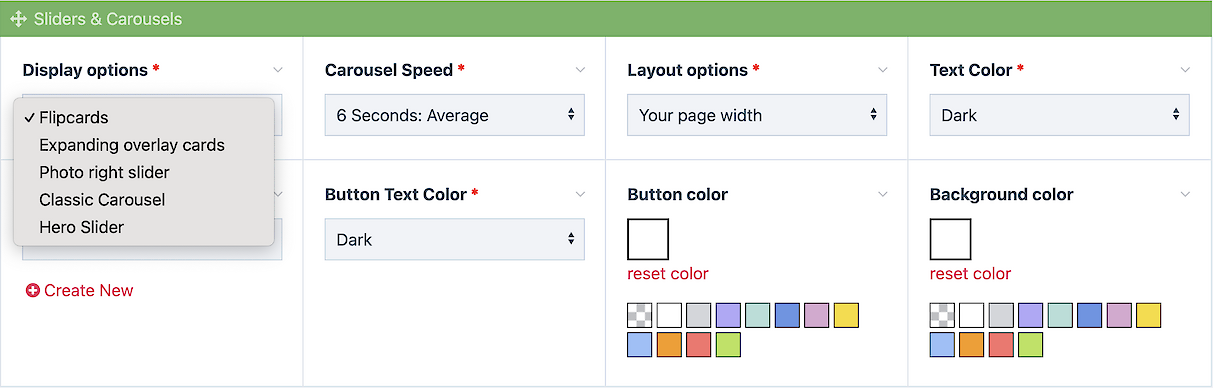
There are currently five carousel options from classic to expanding or flipping cards – and the large hero slider.

The slider or carousel option is a content  block on landing pages and the home page. Add the block and  fine tune your options. Features are added to the Features Gallery individually, where you can add your own tags. An innkeeper, might tag 3 features as "last minute travel" and another 4 features as "leaf peeping specials" ... this allows you to just display the "last minute travel" items on the home page, and the "leaf peeping specials" on another page. 

Add a slider or carousel

  1. Click to add a Slider or Carousel
  2. Content for your slider comes from your tagged special features so all you need to do on any landing page is to choose the kind of slider/carousel you'd like, select the keyword tag, and adjust speed, text color, background color and buttons.


The Help Site

Creative Consulting • Design for People • Smarter Programming • Global Publishing • Contact: Holly@HollyWorks.com
Digital publishing by Boilerplate Books | Privacy Policy & Accessibility | Southern Maine | ProcessWire Made Easy: Tutorials

BoilerPlate Books, LLC | Holly Valero | HollyWorks Web Design | LinkTr.ee