• The Help Site logo

  • Contact
    • The Basics
      • Logging In and Out
      • Document Tree
      • Navigation & logo
      • Quick Actions Menu
      • Footers
      • Fonts
    • Website Design & Layout
      • The Wrapper: Start Here
      • Primary Navigation
      • Footers
      • Social Icons
      • Facebook Sharing Image
      • Button colors, shapes
      • Sidebar Additions
      • Logos
      • Menubar
      • Code (eg. Google Analytics)
    • How to...
      • The Document Tree
      • Create a Page
      • Choosing a Template
      • Basic Page Layout
      • Editing a Page
      • Adding Content: Text
      • Styling text: Blockquotes
      • Adding Content: Images
      • Cropping & Resizing Images
      • Adding Content: Links & PDFs
      • Adding Content: Video
      • Viewing a page
      • Page Commands: Move, Hide, Delete
      • Feeds: Blog, Events, News, Logos
      • META Data
      • Add code to the template (Google Analytics, etc.)
      • PDF Viewable Page
      • Sitewide Navigation: Create & Change
      • Dropdowns and Page Nav: Moving things around
    • Page and Page Top Displays
      • Page top video or photos
      • Utility items: Anchors
      • Accordions
      • Code Blocks
      • Headings or Text
      • Image
      • Image Strip
      • Lists with Icons
      • Nav Bar
      • Overlay Block
      • Photo and copy
      • Utility items: Spacers
      • Sliders and Carousels
      • Tabbed Content
      • Text and/or Button
    • The Content Grid
    • Content Features
      • Blogging
      • Events Calendar
      • Media
      • Galleries
      • News
      • Priorities
      • Publication Library
      • Staff Section
  • The Basics
    • Logging In and Out
    • Document Tree
    • Navigation & logo
    • Quick Actions Menu
    • Footers
    • Fonts
  • Website Design & Layout
    • The Wrapper: Start Here
    • Primary Navigation
    • Footers
    • Social Icons
    • Facebook Sharing Image
    • Button colors, shapes
    • Sidebar Additions
    • Logos
    • Menubar
    • Code (eg. Google Analytics)
  • How to...
    • The Document Tree
    • Create a Page
    • Choosing a Template
    • Basic Page Layout
    • Editing a Page
    • Adding Content: Text
    • Styling text: Blockquotes
    • Adding Content: Images
    • Cropping & Resizing Images
    • Adding Content: Links & PDFs
    • Adding Content: Video
    • Viewing a page
    • Page Commands: Move, Hide, Delete
    • Feeds: Blog, Events, News, Logos
    • META Data
    • Add code to the template (Google Analytics, etc.)
    • PDF Viewable Page
    • Sitewide Navigation: Create & Change
    • Dropdowns and Page Nav: Moving things around
  • Page and Page Top Displays
    • Page top video or photos
    • Utility items: Anchors
    • Accordions
    • Code Blocks
    • Headings or Text
    • Image
    • Image Strip
    • Lists with Icons
    • Nav Bar
    • Overlay Block
    • Photo and copy
    • Utility items: Spacers
    • Sliders and Carousels
    • Tabbed Content
    • Text and/or Button
  • The Content Grid
  • Content Features
    • Blogging
    • Events Calendar
    • Media
    • Galleries
    • News
    • Priorities
    • Publication Library
    • Staff Section
Contact
The Help Site

Creative Consulting • Design for People • Smarter Programming • Global Publishing • Contact: Holly@HollyWorks.com
Digital publishing by Boilerplate Books | Privacy Policy & Accessibility | Southern Maine | ProcessWire Made Easy: Tutorials

BoilerPlate Books, LLC | Holly Valero | HollyWorks Web Design | LinkTr.ee
The Content Grid 

The content grid let's you create a grid of content blocks that have a masonry flow. Content blocks can be a variety of widths and include everything from basic text, to slideshows or videos, or your various website feeds for: news, blog, media, events, testimonials - even logos.

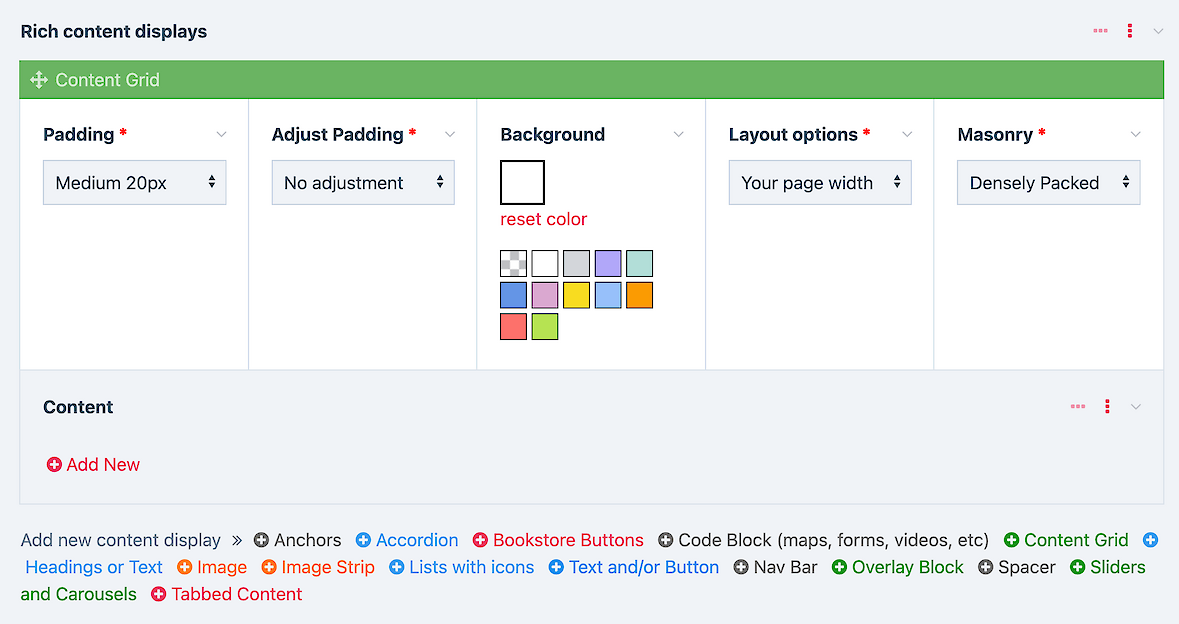
First, you click the link to create the Content Grid, and adjust width, padding and background colors.

Each grid contains all the content blocks within it. You can create as many or as few as you like. Each new content grid provides a clean break from the rest.

Add content blocks to your grid

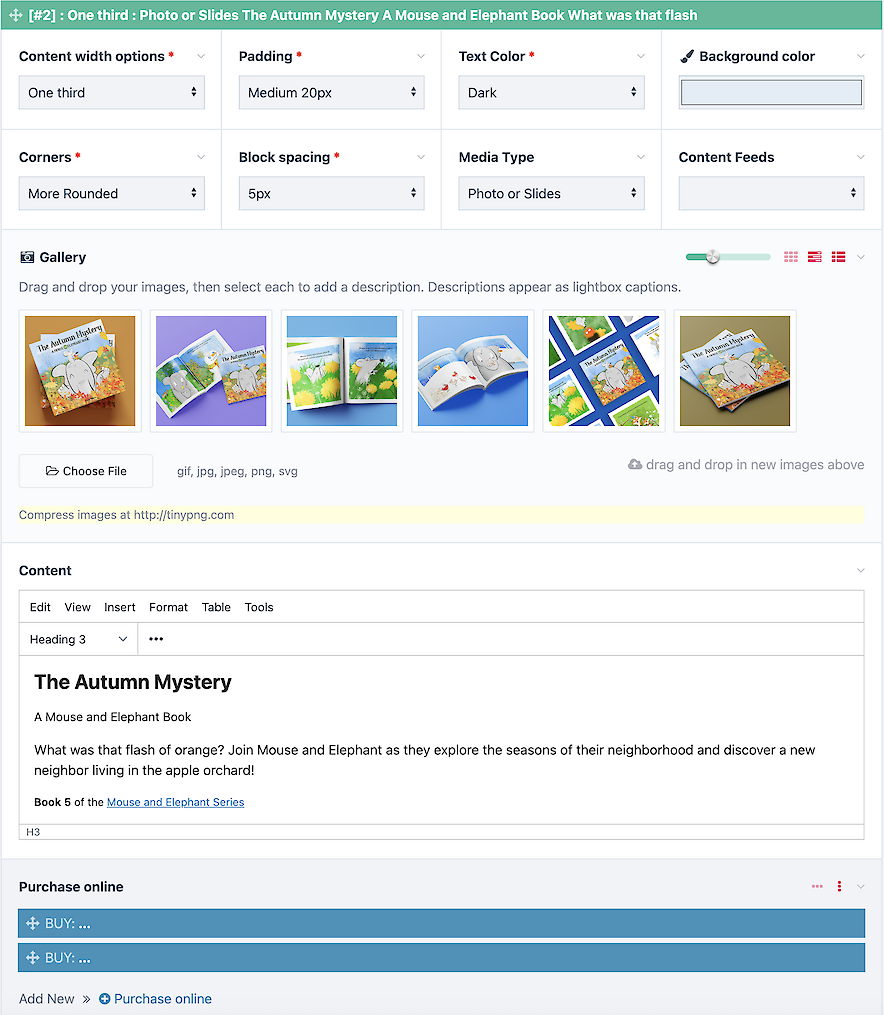
  1. click to add content
  2. choose your desired width for the block, and any padding you'd like to add
  3. choose your text color and background color
  4. all blocks have corner options allowing for a wide range of styles
  5. block spacing is the amount of space around the whole block
  6. for text or media within the text box, leave "Media Type" blank.  
  7. if you'd like to stream content from your site into the block choose it under content feeds

Just for authors and writers

For authors and writers, this content block includes bookstore buttons which you can see in use on my website.

Moving and copying and adjusting

  1. Once you have your blocks, they can be dragged to any location within the grid. You can adjust widths, colors, and contents.
  2. You can clone existing blocks to speed workflow and you can copy a block or content grid from one page to another.

Adding content feeds from around the website

This super-flexible feature streams calendar items, news or media, blog posts, testimonials and logos...

Copy a content block or an entire content grid to another web page

The majority of website building tools allow you to save "a design" and then on another web page, pop in that design and customize it - because getting the design consistent from page to page can be difficult. This platform offers a kind of speed and finesse with your content that no other platform can match.  


The Help Site

Creative Consulting • Design for People • Smarter Programming • Global Publishing • Contact: Holly@HollyWorks.com
Digital publishing by Boilerplate Books | Privacy Policy & Accessibility | Southern Maine | ProcessWire Made Easy: Tutorials

BoilerPlate Books, LLC | Holly Valero | HollyWorks Web Design | LinkTr.ee