• The Help Site logo

  • Contact
    • The Basics
      • Logging In and Out
      • Document Tree
      • Navigation & logo
      • Quick Actions Menu
      • Footers
      • Fonts
    • Website Design & Layout
      • The Wrapper: Start Here
      • Primary Navigation
      • Footers
      • Social Icons
      • Facebook Sharing Image
      • Button colors, shapes
      • Sidebar Additions
      • Logos
      • Menubar
      • Code (eg. Google Analytics)
    • How to...
      • The Document Tree
      • Create a Page
      • Choosing a Template
      • Basic Page Layout
      • Editing a Page
      • Adding Content: Text
      • Styling text: Blockquotes
      • Adding Content: Images
      • Cropping & Resizing Images
      • Adding Content: Links & PDFs
      • Adding Content: Video
      • Viewing a page
      • Page Commands: Move, Hide, Delete
      • Feeds: Blog, Events, News, Logos
      • META Data
      • Add code to the template (Google Analytics, etc.)
      • PDF Viewable Page
      • Sitewide Navigation: Create & Change
      • Dropdowns and Page Nav: Moving things around
    • Page and Page Top Displays
      • Page top video or photos
      • Utility items: Anchors
      • Accordions
      • Code Blocks
      • Headings or Text
      • Image
      • Image Strip
      • Lists with Icons
      • Nav Bar
      • Overlay Block
      • Photo and copy
      • Utility items: Spacers
      • Sliders and Carousels
      • Tabbed Content
      • Text and/or Button
    • The Content Grid
    • Content Features
      • Blogging
      • Events Calendar
      • Media
      • Galleries
      • News
      • Priorities
      • Publication Library
      • Staff Section
  • The Basics
    • Logging In and Out
    • Document Tree
    • Navigation & logo
    • Quick Actions Menu
    • Footers
    • Fonts
  • Website Design & Layout
    • The Wrapper: Start Here
    • Primary Navigation
    • Footers
    • Social Icons
    • Facebook Sharing Image
    • Button colors, shapes
    • Sidebar Additions
    • Logos
    • Menubar
    • Code (eg. Google Analytics)
  • How to...
    • The Document Tree
    • Create a Page
    • Choosing a Template
    • Basic Page Layout
    • Editing a Page
    • Adding Content: Text
    • Styling text: Blockquotes
    • Adding Content: Images
    • Cropping & Resizing Images
    • Adding Content: Links & PDFs
    • Adding Content: Video
    • Viewing a page
    • Page Commands: Move, Hide, Delete
    • Feeds: Blog, Events, News, Logos
    • META Data
    • Add code to the template (Google Analytics, etc.)
    • PDF Viewable Page
    • Sitewide Navigation: Create & Change
    • Dropdowns and Page Nav: Moving things around
  • Page and Page Top Displays
    • Page top video or photos
    • Utility items: Anchors
    • Accordions
    • Code Blocks
    • Headings or Text
    • Image
    • Image Strip
    • Lists with Icons
    • Nav Bar
    • Overlay Block
    • Photo and copy
    • Utility items: Spacers
    • Sliders and Carousels
    • Tabbed Content
    • Text and/or Button
  • The Content Grid
  • Content Features
    • Blogging
    • Events Calendar
    • Media
    • Galleries
    • News
    • Priorities
    • Publication Library
    • Staff Section
Contact
The Help Site

Creative Consulting • Design for People • Smarter Programming • Global Publishing • Contact: Holly@HollyWorks.com
Digital publishing by Boilerplate Books | Privacy Policy & Accessibility | Southern Maine | ProcessWire Made Easy: Tutorials

BoilerPlate Books, LLC | Holly Valero | HollyWorks Web Design | LinkTr.ee
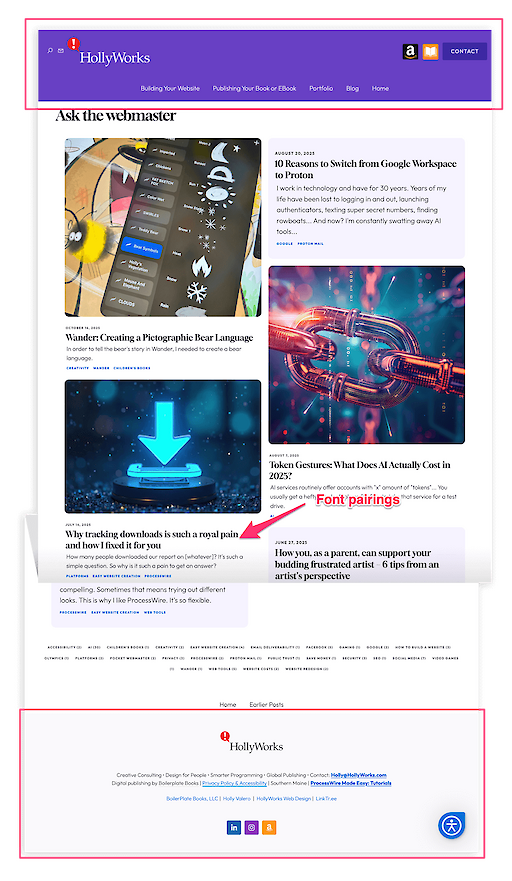
The Wrapper 

Every website begins with a header at the top that may contain:

  1. top level navigation
  2. logos and branding
  3. buttons and social media icons
  4. email links
  5. search features

At the bottom of any web page you'll find  a footer that may include:

  1. secondary navigation
  2. copyrights
  3. company or organizational data
  4. logos
  5. social media links

These headers and footers wrap your website pages. All of these options for the full site are found:

Sitewide Assets -> Website Design & Layout

There are many more customizations on this page including font pairings, overall website width, mapping, and more.  These can be changed on the fly at any time. 

Location:
Sitewide Assets: Web Design & Layout

The overall look and feel of your website is determined by the Website Design &Layout page. Turning elements on or off doesn't remove them from the database, just from the view – so you can turn them off and on to see the effect.  

What to display in your navigation is at the very top. Check the boxes to include your logo, general page navigation, social media icons, bookstore icons, a call to action button, and the quick menu. 

As you continue down the page you'll find wrapper elements that display in the header, footer, and sitewide.  

  1. The map marker in the nav displays if you add a URL to a mapped location – Google maps or any map.
  2. Footer text content and links along with color options and the option for a bigger chunky footer or a streamlined footer.
  3. Basic overall website width, font pairings and title alignment (left or centered) 
  4. Social media links are added and updated here. You can include them in the top nav with a click in the first section. You can also update, change the order, turn them off temporarily, or delete them. 

Location:
Sitewide Assets: Web Design & Layout

  1. Bookstore icons and links are available for writers
  2. Codeblock for sidebars is handy for streaming external elements in the right sidebar of pages
  3. Facebook sharing image (along with instructions for how to refresh this element) will display as a default site image when people post your website to social media. 
  4. The call to action button in the top navigation: wording, link, colors and corners is next – this is the default for any undefined buttons sitewide.
  5. Two logo options for headers and footers in case you'd like a reversed logo on your footer and full color in the header. Right below are options for maximum logo widths, and how widely to display your logo: every page? none? all but the home page?
  6. Sitewide color scheme for headers is next with plenty of options for dropdowns and mouseovers.  Basic link colors and highlighted text are also here. 
  7. If super-accessibility is your goal there's a checkbox that will underline and bold your links site wide. 
  8. At the very bottom are three "buckets" for handling copy-and-paste tracking code that needs to be in the head tags, top of body, or page bottom. 
The Help Site

Creative Consulting • Design for People • Smarter Programming • Global Publishing • Contact: Holly@HollyWorks.com
Digital publishing by Boilerplate Books | Privacy Policy & Accessibility | Southern Maine | ProcessWire Made Easy: Tutorials

BoilerPlate Books, LLC | Holly Valero | HollyWorks Web Design | LinkTr.ee